Track your balance
Your account balance appears in the header. Click its value to open Balance and statement, where you can review credits and usage. All projects share this wallet; the selected project organizes metrics and can limit its own spending.
When the balance cannot cover a live call, the API returns 402 payment_required. It does not execute the service or create a charge. DEV simulations do not use credit.
Add credit
- Click Top up in the balance pill or open Balance and statement.
- Choose an amount and continue to checkout in the dashboard.
- Pay with PIX or card, according to the options shown.
- Track confirmation in payment history and check the new balance.
The screen shows each payment's status. If a top-up is still pending, check history before starting another to avoid duplicate payments.
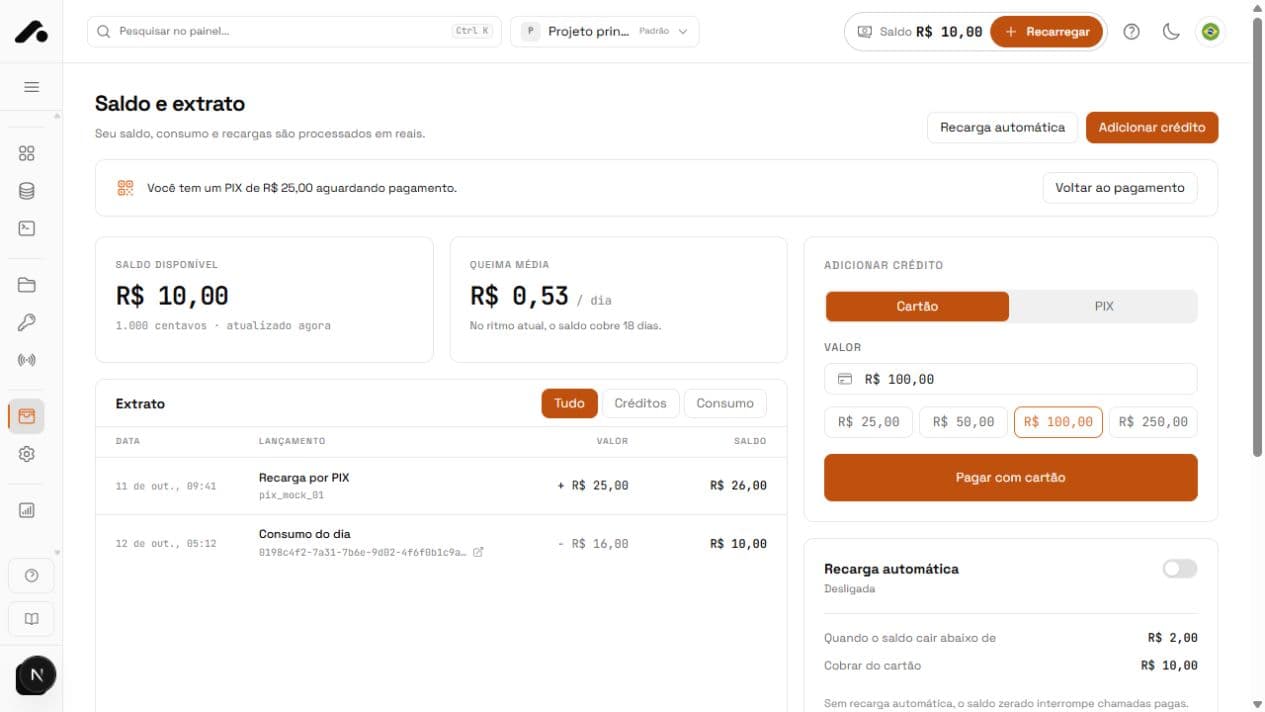
Set up automatic top-up
Automatic top-up works only with a card. Choose a balance threshold X and an amount Y to add when the balance drops below it. Review both before enabling it so replenishment matches your request volume.
Control spending by project
Open Projects to set a daily or monthly spending limit. It controls that project's usage without separating the balance. Once reached, new calls for that project are rejected even if the account still has credit.
Use Calls to investigate usage by service and project. Balance and statement records account financial movements; use both to reconcile cost and usage.
Quick answers
When your balance falls below the threshold you set, we charge your chosen amount to a saved card. PIX requires you to complete each payment.
Only Production requests with a 2xx response. Simulations and errors are free.
Yes, per project, by day or month. Once the limit is reached, requests return 402 and are not charged.