Search by problem
Open Catalog. Search by API name or category. The filters at the top group services such as company records, documents, biometrics, and vehicles. Each chip shows the number of services. On mobile, scroll the chips horizontally.
- Search for the goal, such as
revenueorface. - Choose a group that matches the data or operation.
- Open relevant cards and compare fields, price, and use cases.
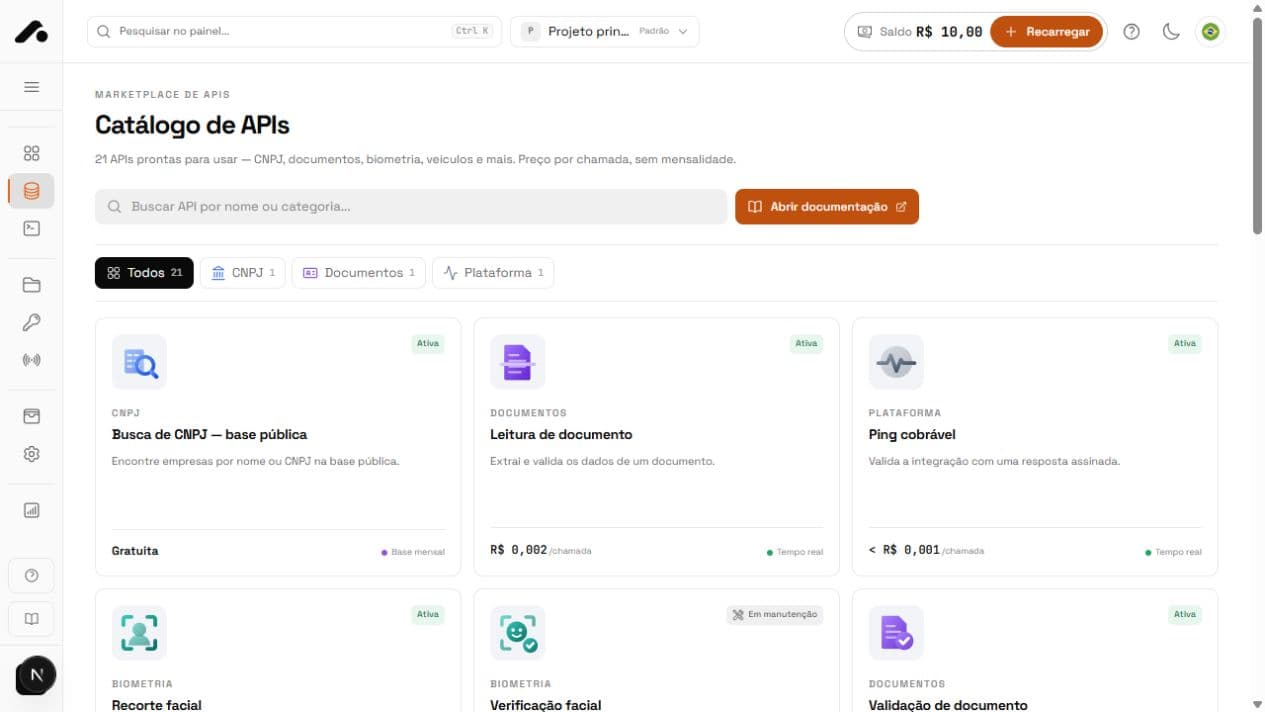
Read an API card
Every service has its own icon. Active allows requests; Maintenance means a temporary outage; Coming soon cannot yet be called. The source badge tells you whether data comes from an Official source, AI model, Own engine, or Partner.
The footer shows Real time or Monthly database freshness. The price is a rounded typical call cost to aid comparison. Hover over it for the exact amount. A Free route does not use your balance.
Check details before integrating
The service detail covers its description, data source, response fields, and use cases. Test and integrate shows parameters by type and location, request examples, sample responses, and error codes. The exact price and billing model appear alongside it.
Compare cost and freshness
| Check | Decision |
|---|---|
| Status | Choose an Active API for immediate calls. |
| Source | Check that its origin suits your workflow and data policy. |
| Freshness | Real time and Monthly database suit different timeliness needs. |
| Price | Use typical price for an estimate; check the full pricing table in the detail. |
Typical cost is based on observed usage over the last 30 days when enough data is available. Token charges and minimum charges can change the final amount according to the request and response.
Quick answers
The card shows the typical request price: the actual average over the past 30 days, or an estimate until enough history exists.
No. Only 2xx responses are charged.
The source publishes that database monthly, as Brazil's Federal Revenue Service does. Real time queries the source when you make the request.